MX Keypad Onboarding
What Logitech's MX Keypad shows you the first time you plug it in.
- Produced at
- Logitech
- Type of work
- Software
- Year
- 2025-2026
- The problem
- Two years after the launch of the MX Consoles bundle (MX Keypad, MX Dialpad, and Actions Ring), the Keypad is being launched as a standalone product, with a focus on a new audience (developers and people who code with AI). The onboarding process had to be redesigned with this in mind, while still catering to a diverse range of user profiles.
- What I did
- Reworked the first-run flow in two phases: asking what people use it for before explaining anything, then showing what it’s for.
- Result
- ~90% go through every onboarding screen
The result
Context
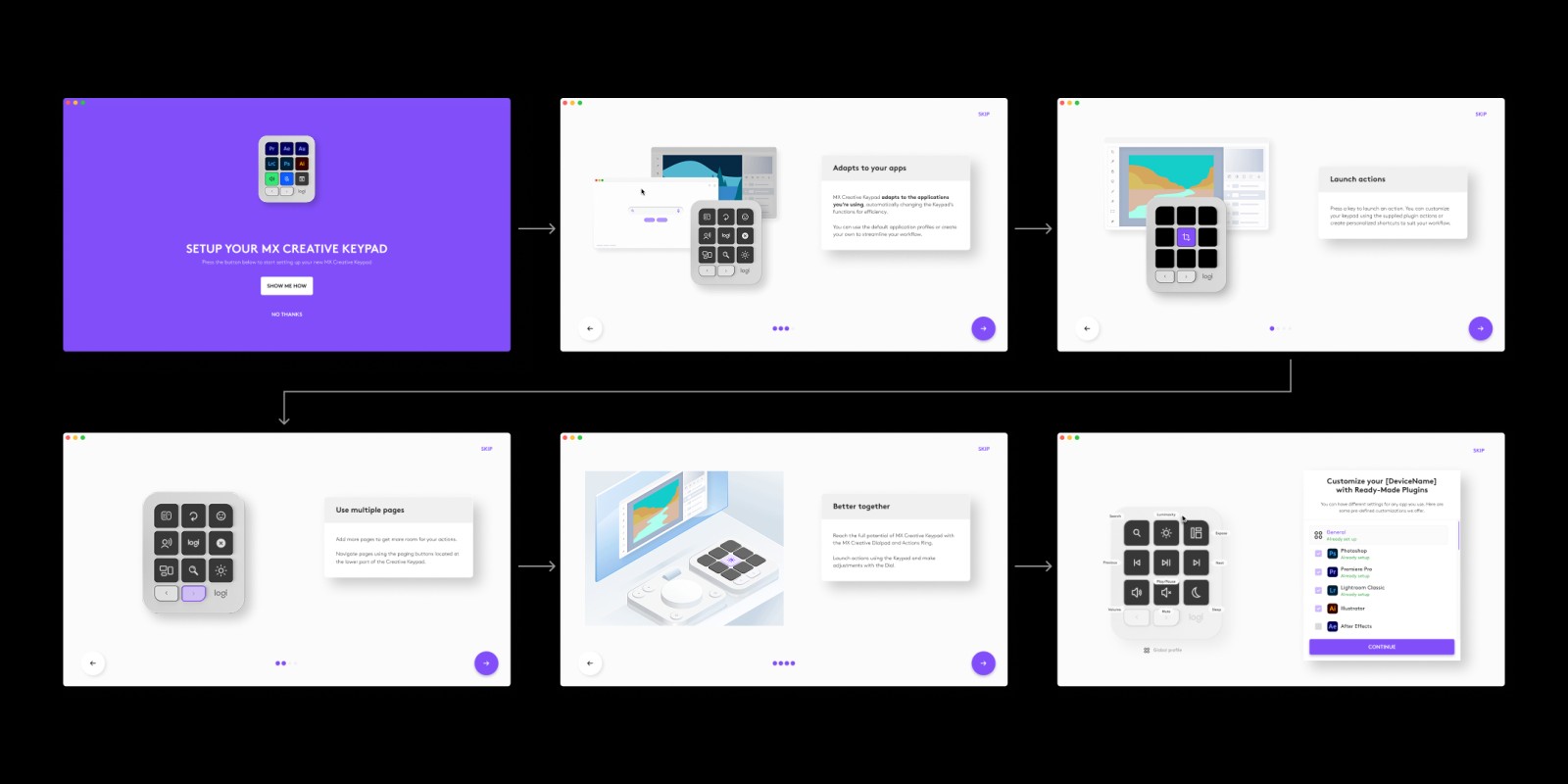
The Consoles onboarding explained features, one static screen at a time: adapts to your apps, launch actions, multiple pages, better together, install plugins. One of those screens was about using the keypad with the other devices in the bundle.
Sold alone, the keypad had nothing to be used with. Its new audience wasn't mainly creative either. The flow needed rethinking, not trimming.
User needs
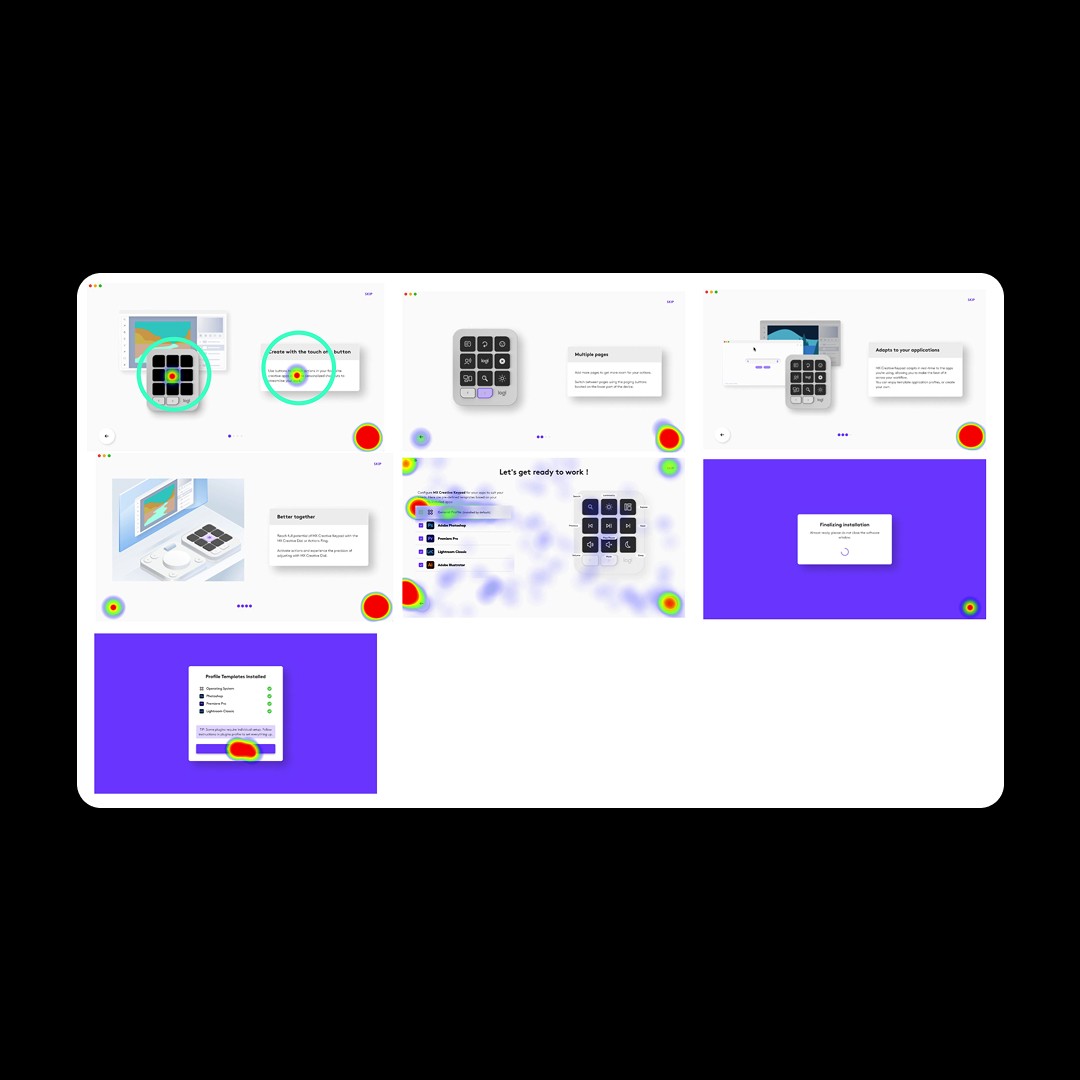
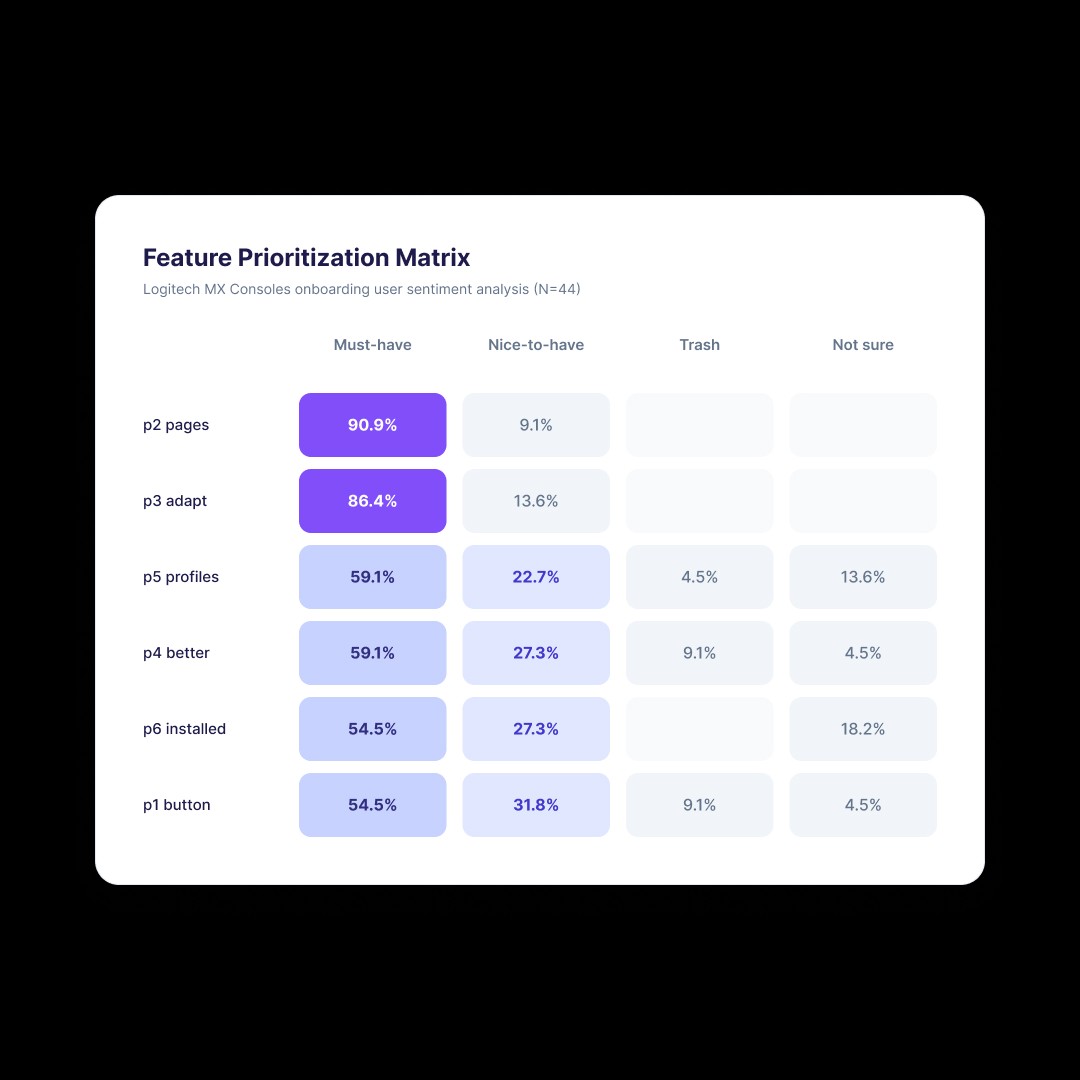
Logitech's research team had tested the Consoles onboarding on Maze, a remote testing tool, using Figma prototypes: 22 participants for the Keypad introduction. I joined the team while the study was running, updated screens based on its results, and later used the readout as the starting point for the standalone version.
Three findings shaped what came next:
- People read the screens like a presentation. They hovered, rarely clicked, and nothing prompted them to act.
- "Adapts to your app" impressed people most, and made the least sense to them. Words like "contextual" or "profile templates" didn't mean much.
- They wanted to know how to go further than the defaults.
There was no separate study for the standalone version. The rest came from weekly discussions with the PMs, and from a point I kept making: use cases broad enough for someone who has never opened an IDE.
Constraints
- The hardware stays silent. Reacting to a real key press during setup had never been built for any Logitech device, and this wasn't the project to start.
- Existing components. For the first few months, the flow had to be built from UI components Options+ already had. That changed in March, and the layout changed with it.
- One name per feature. The feature is called Adapt to App everywhere in Options+. Renaming it in the onboarding alone wasn't an option.
- 19 languages. Copy is written in English first, then translated.
- Time. Six months, alongside other projects, with development busy on higher priorities.
Phase 1: Asking before explaining
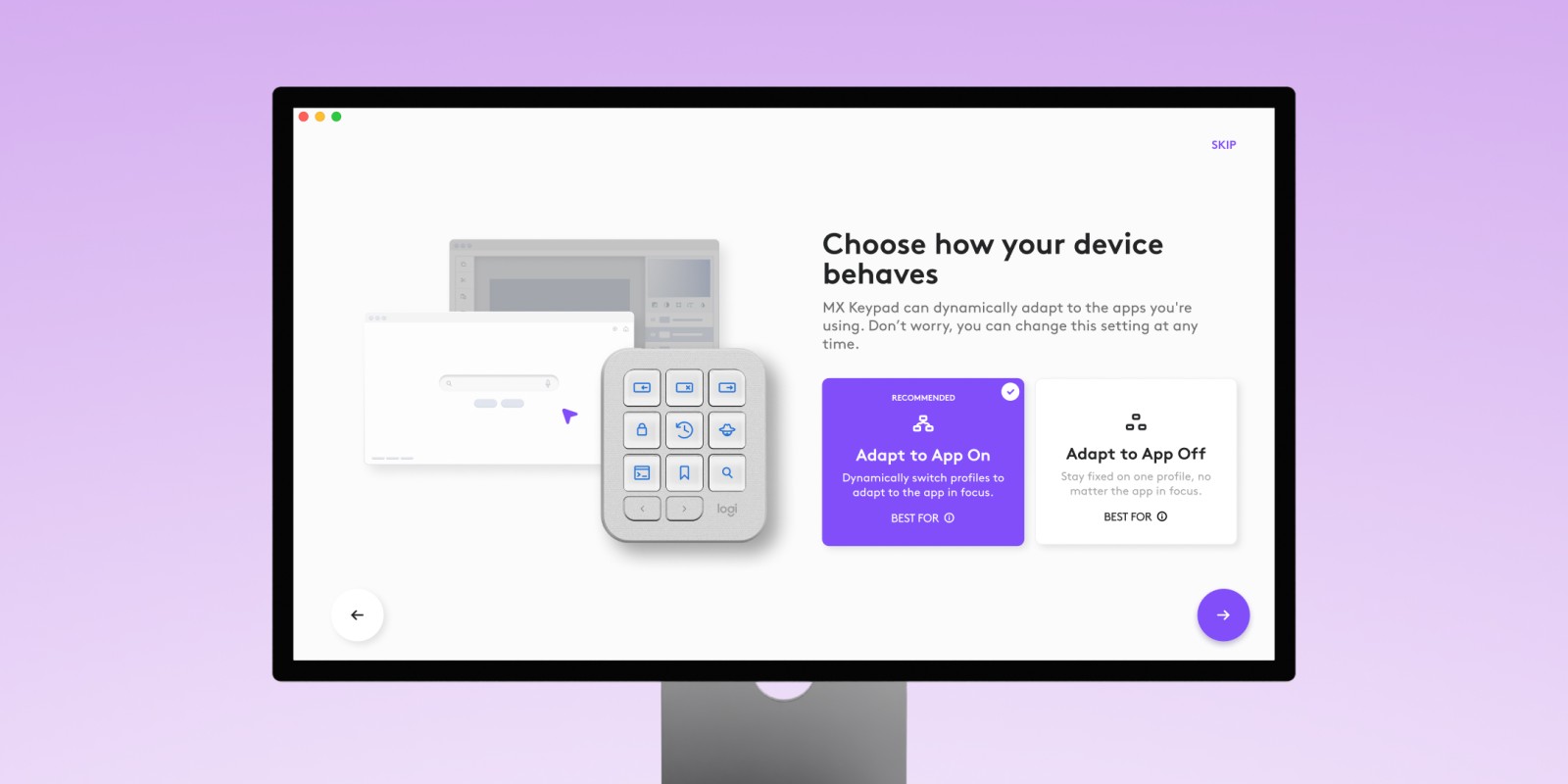
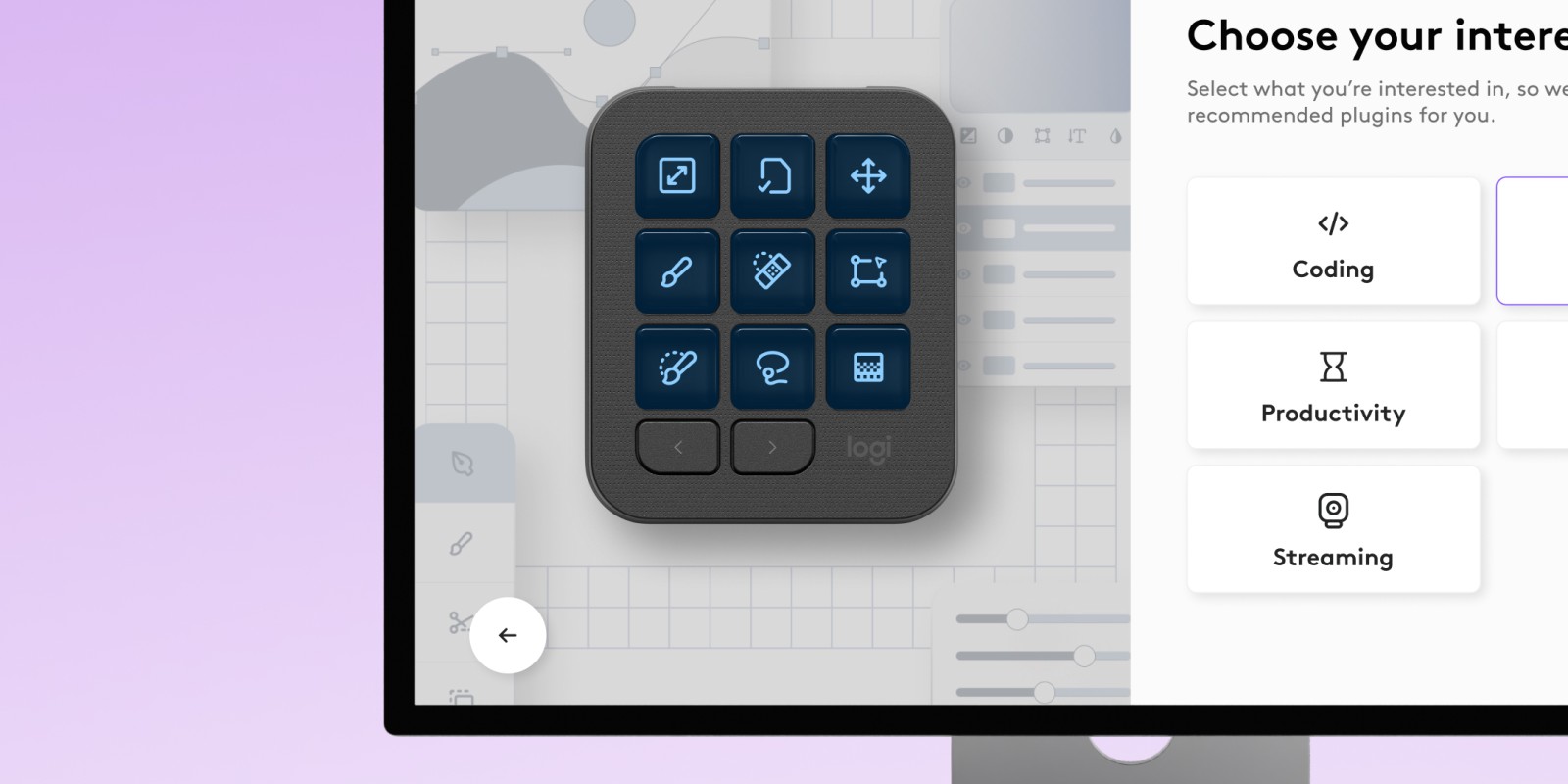
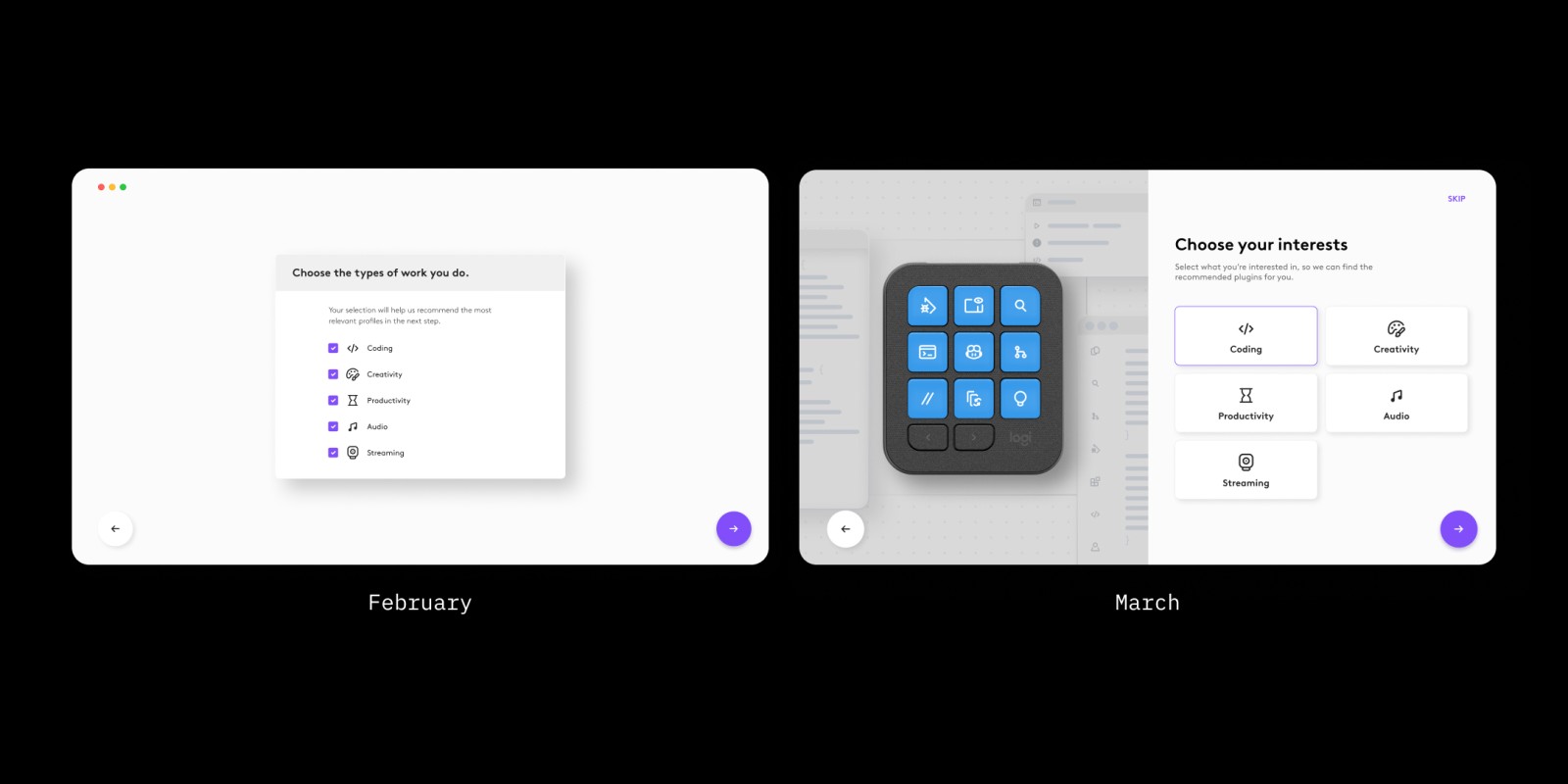
The first change was structural. Instead of walking through features, the flow asks two questions: should the keys change with each app (Adapt to App on or off), and what kind of work do you do?
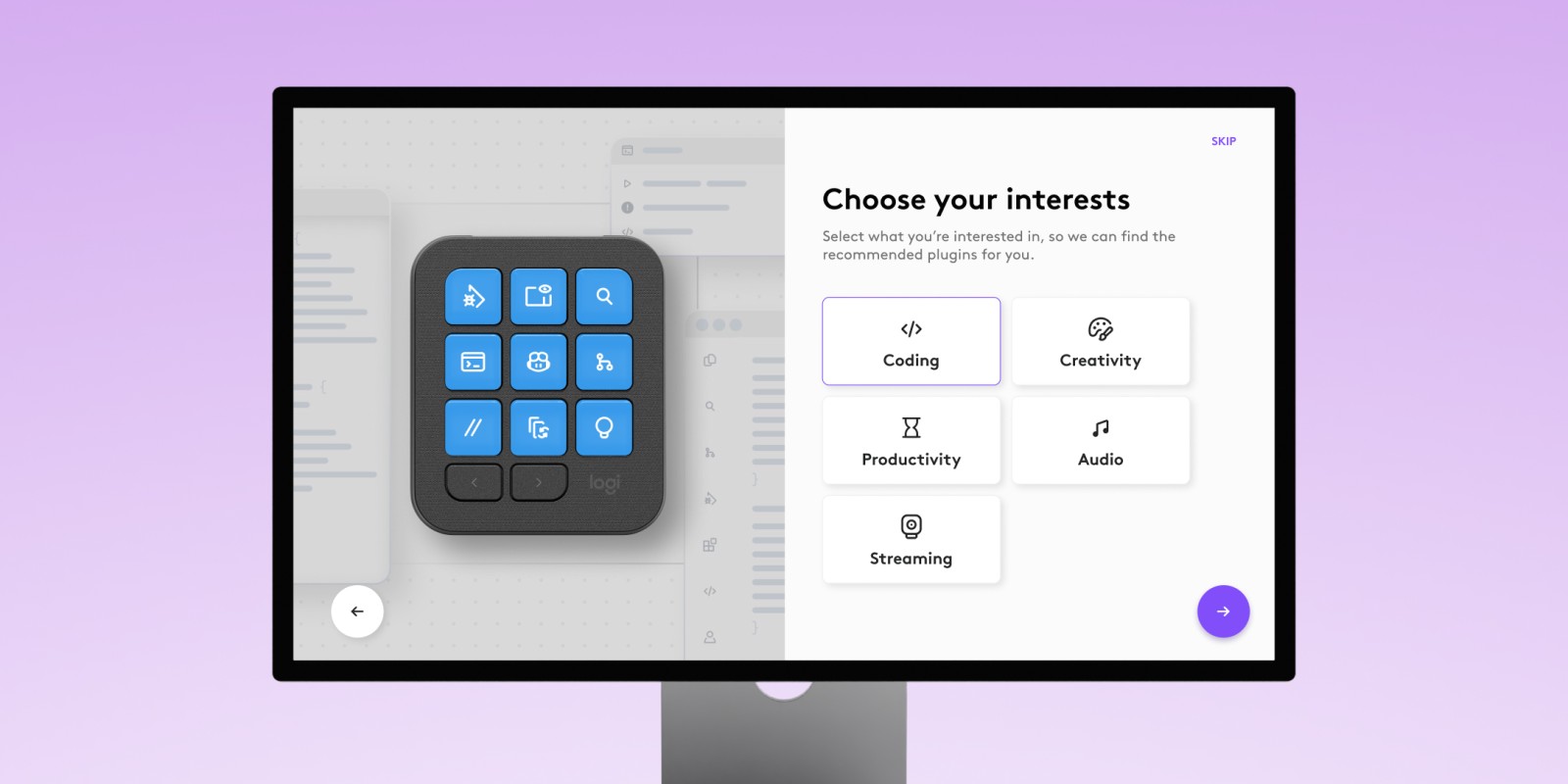
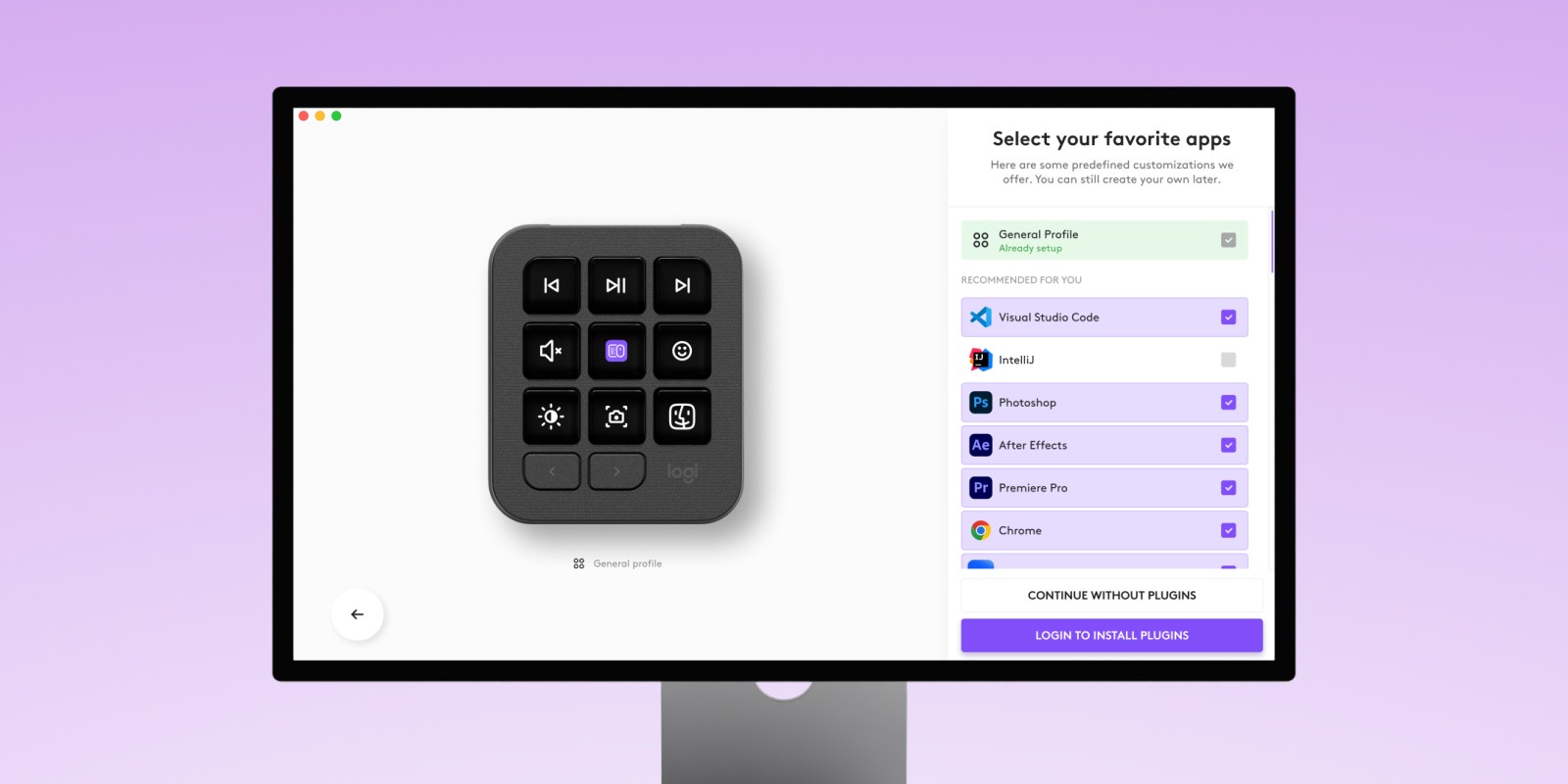
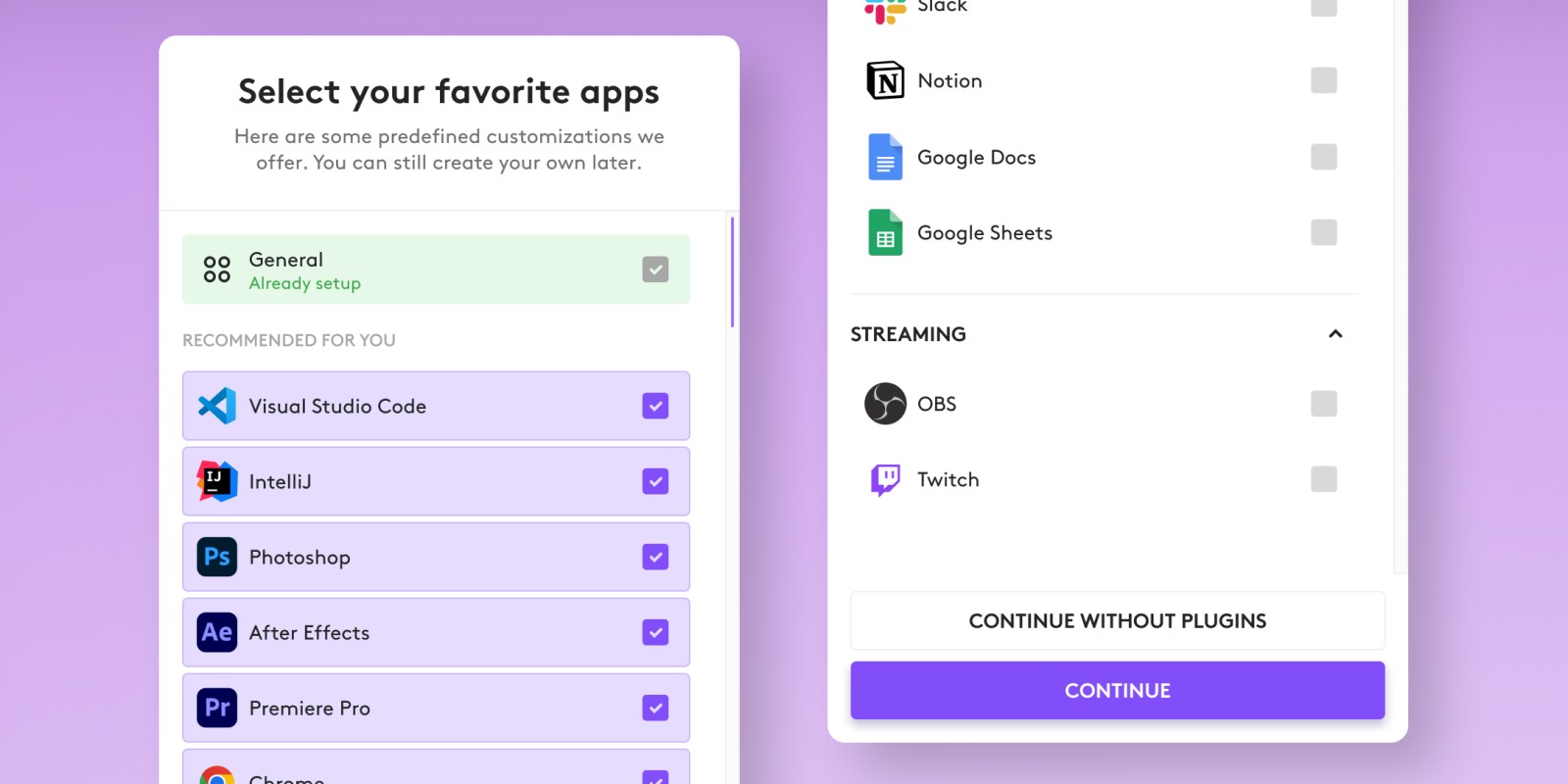
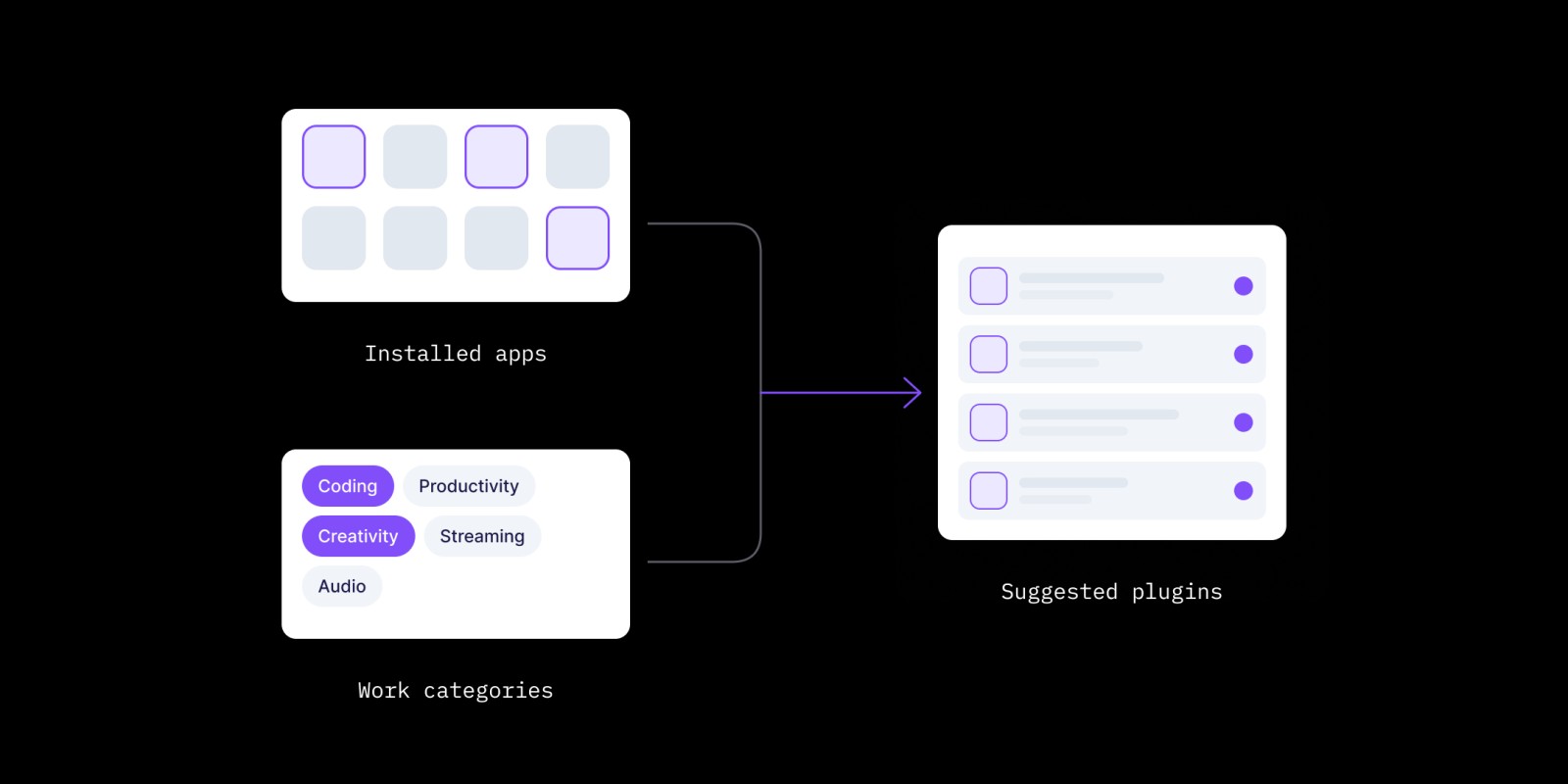
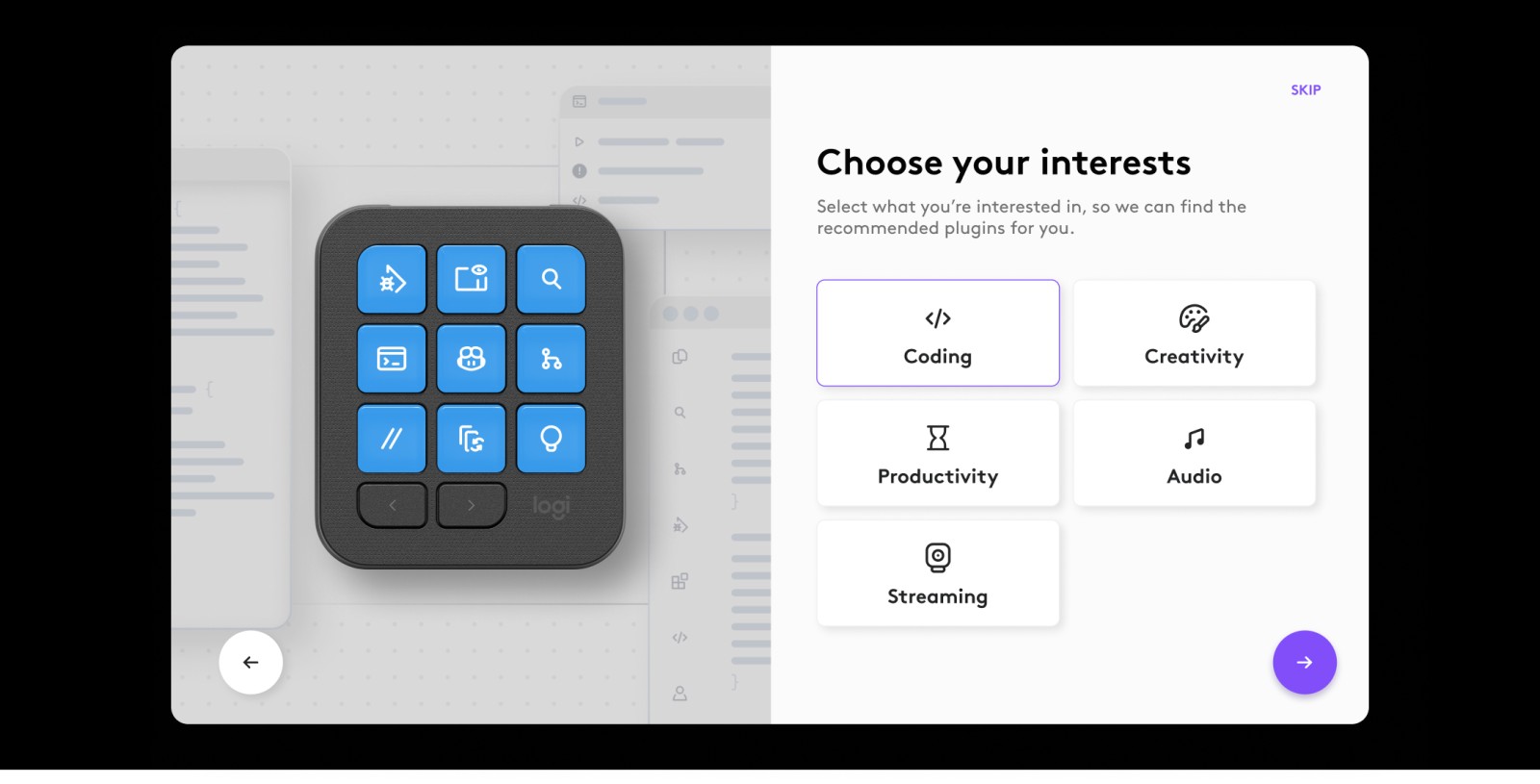
The second one was my proposal. Suggested plugins used to come only from scanning the apps installed on the computer. We'd talked about adding categories inside the plugin list. I suggested giving them a step of their own instead, so the list stays short. Five categories (Coding, Productivity, Creativity, Streaming, Audio) are combined with the scan to decide what gets suggested. The marketplace keeps growing. The step doesn't have to.
What it still got wrong: stuck with existing components, the questions came without context. Asking whether a device should adapt to your apps assumes you already know what that looks like.
Phase 2: Showing what it's for
The research was clear: "adapts to your app" was both the best part and the least understood. The Consoles onboarding had tried to explain it, and explaining hadn't worked.
So the flow stopped explaining. It shows both ways of using the keypad, each with its own use cases, and lets people pick. When we were no longer tied to existing components, in March, everything else was rebuilt in the same order: show first, then ask.
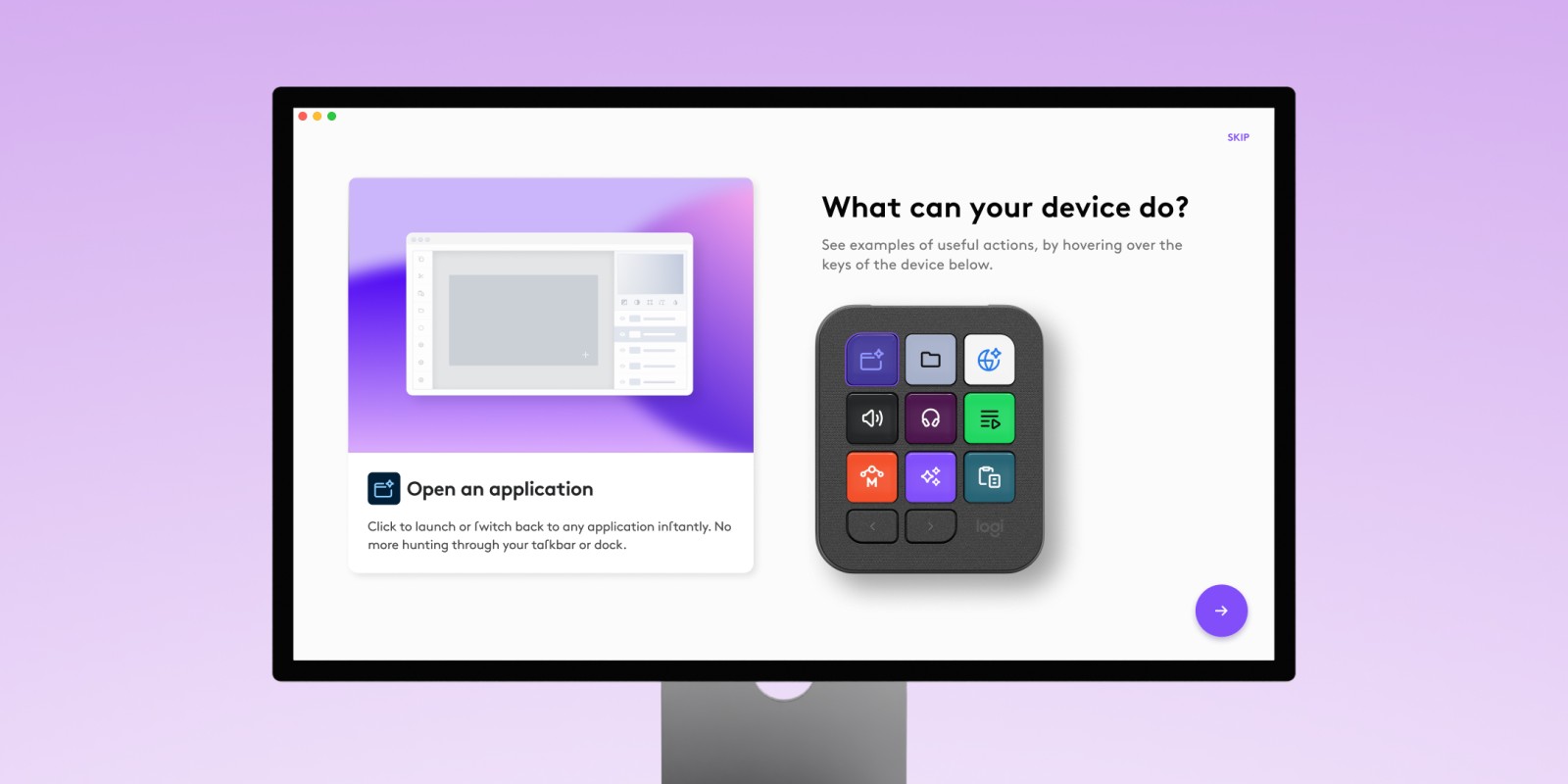
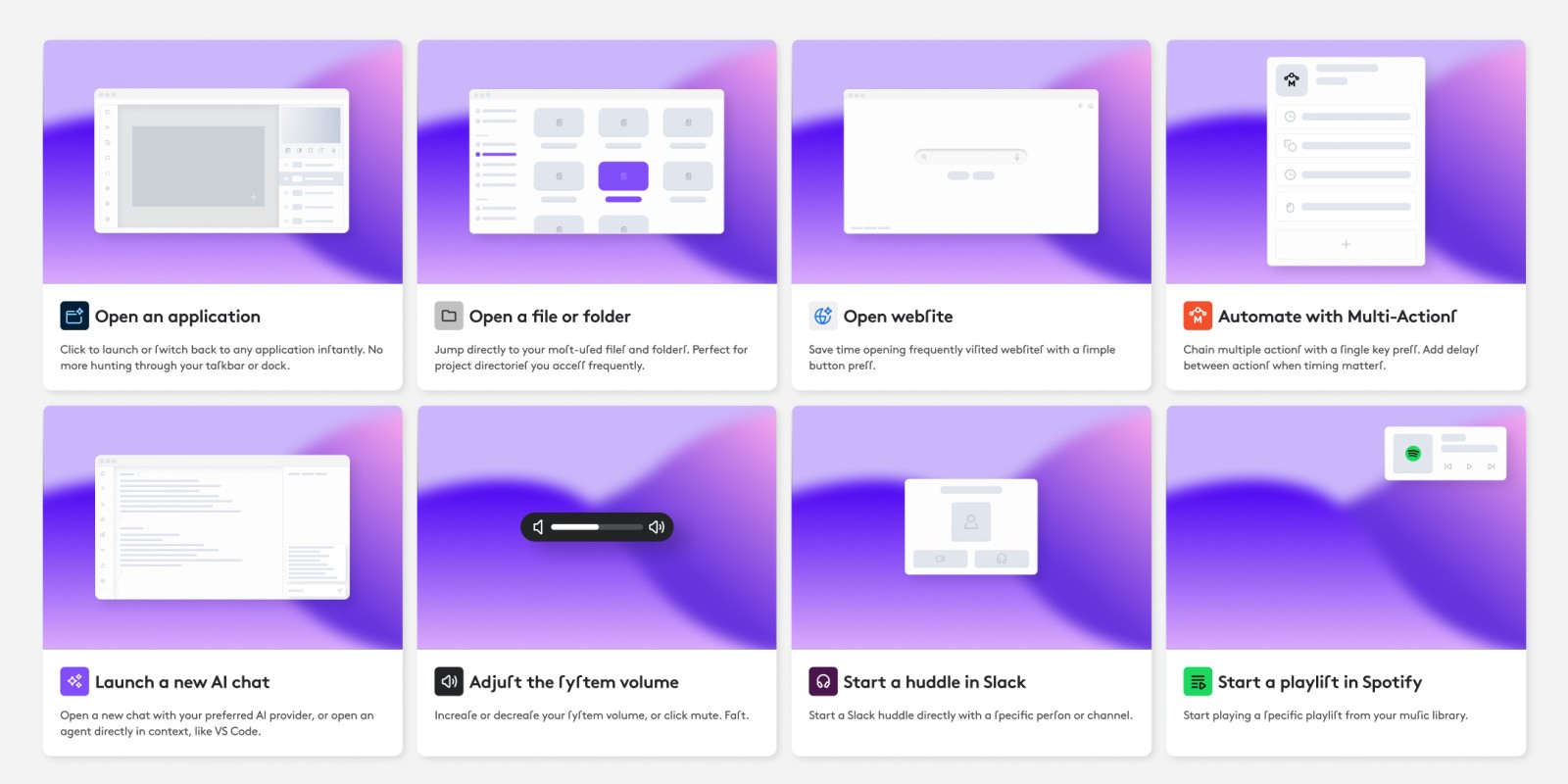
Before any question, nine short animations show what a key can do: open an app, a file or a website, adjust the volume, start a playlist or a huddle, chain several actions, start an AI chat, paste a prompt. Only the last two are aimed at developers.
Two behaviours, side by side
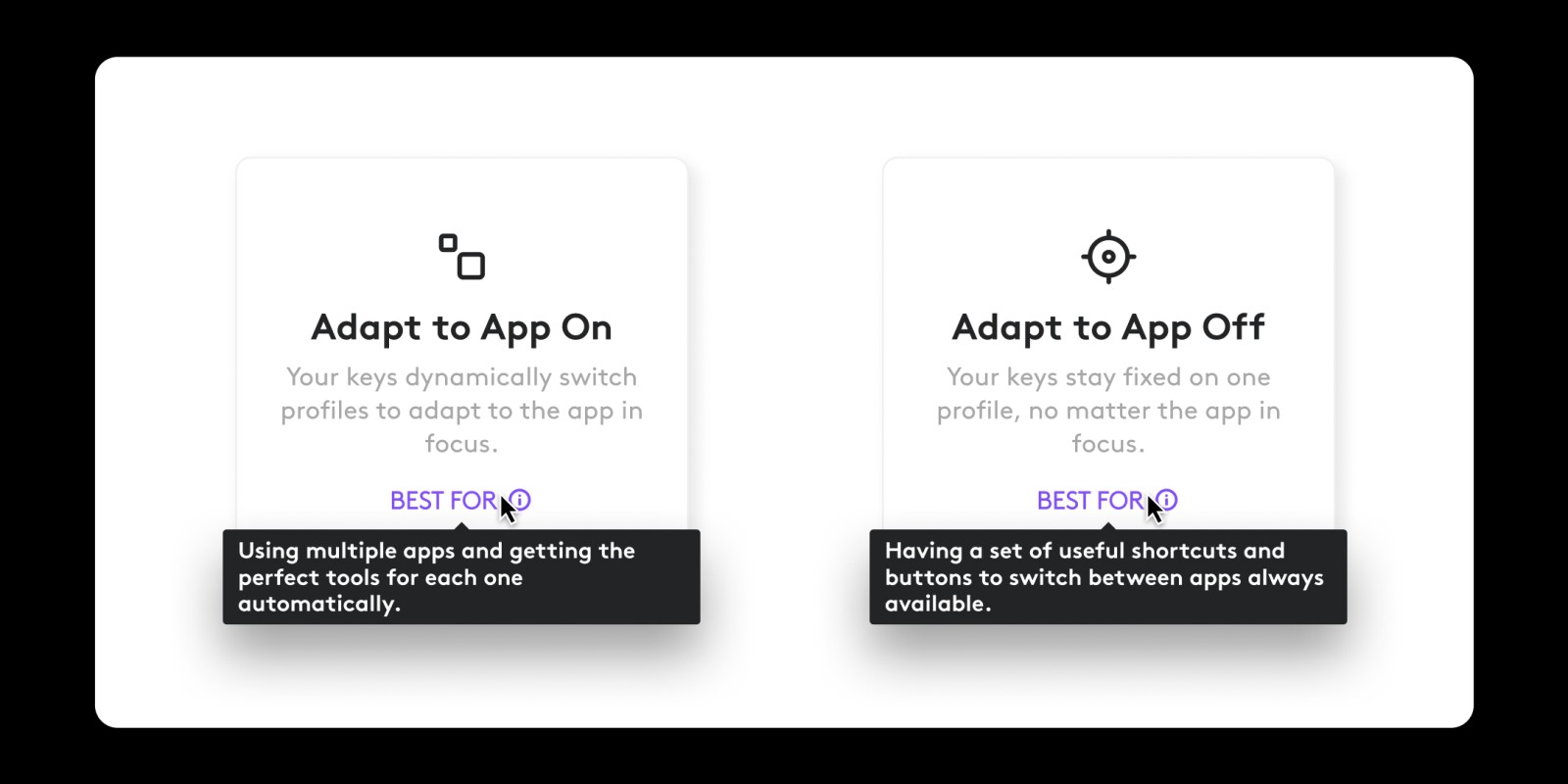
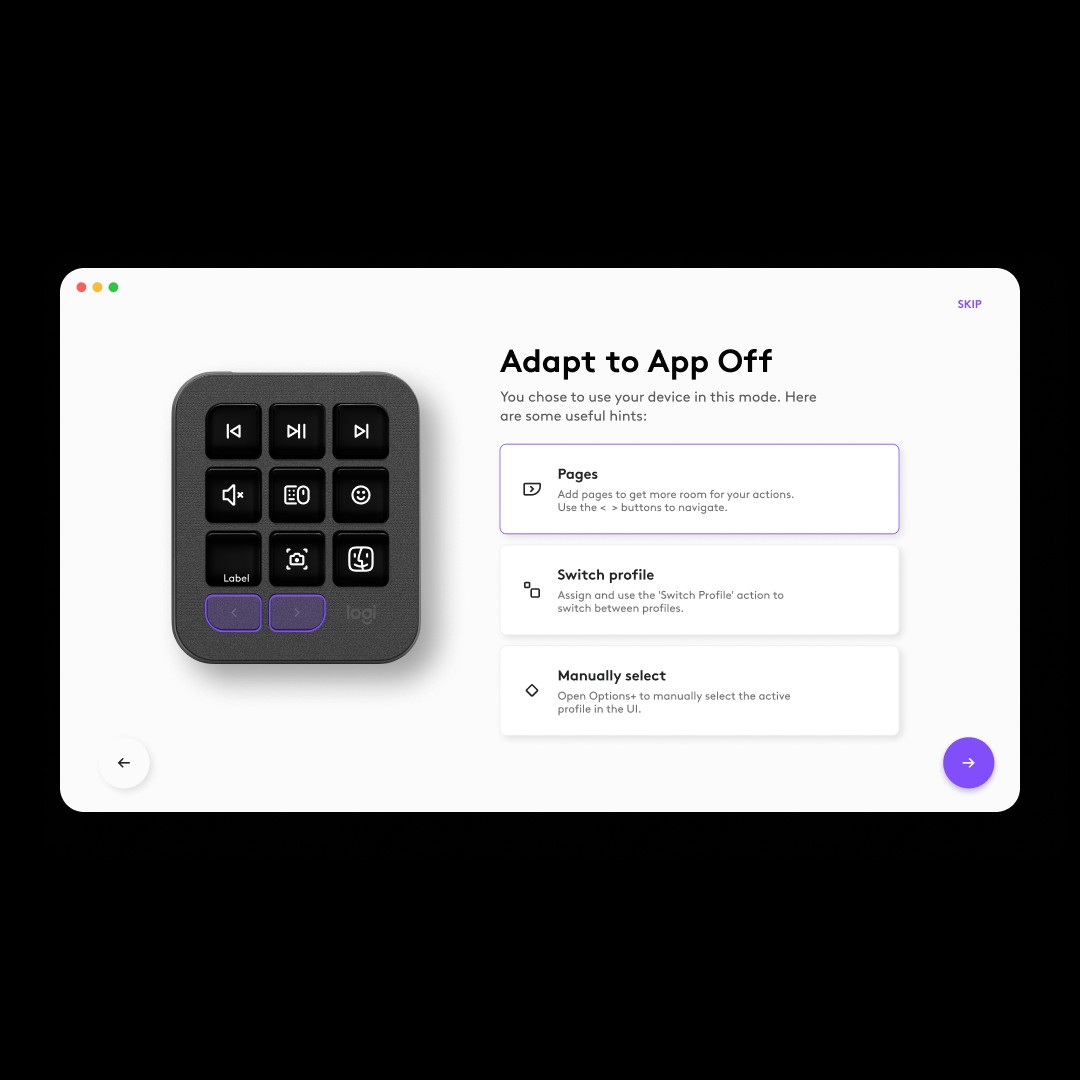
With Adapt to App on, the keys change with whatever app you're in. Off, they stay put. Each option gets an animation instead of a definition.
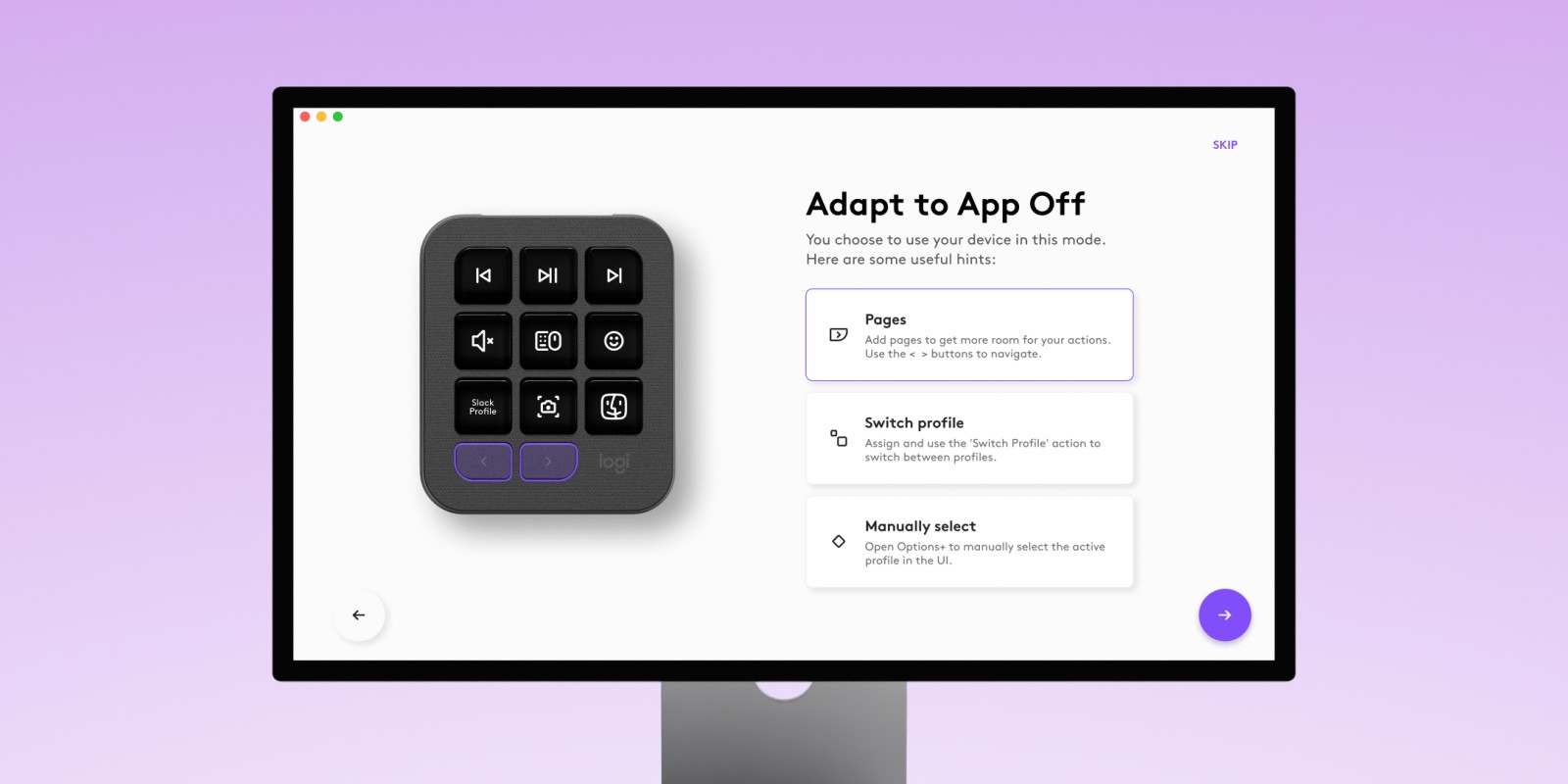
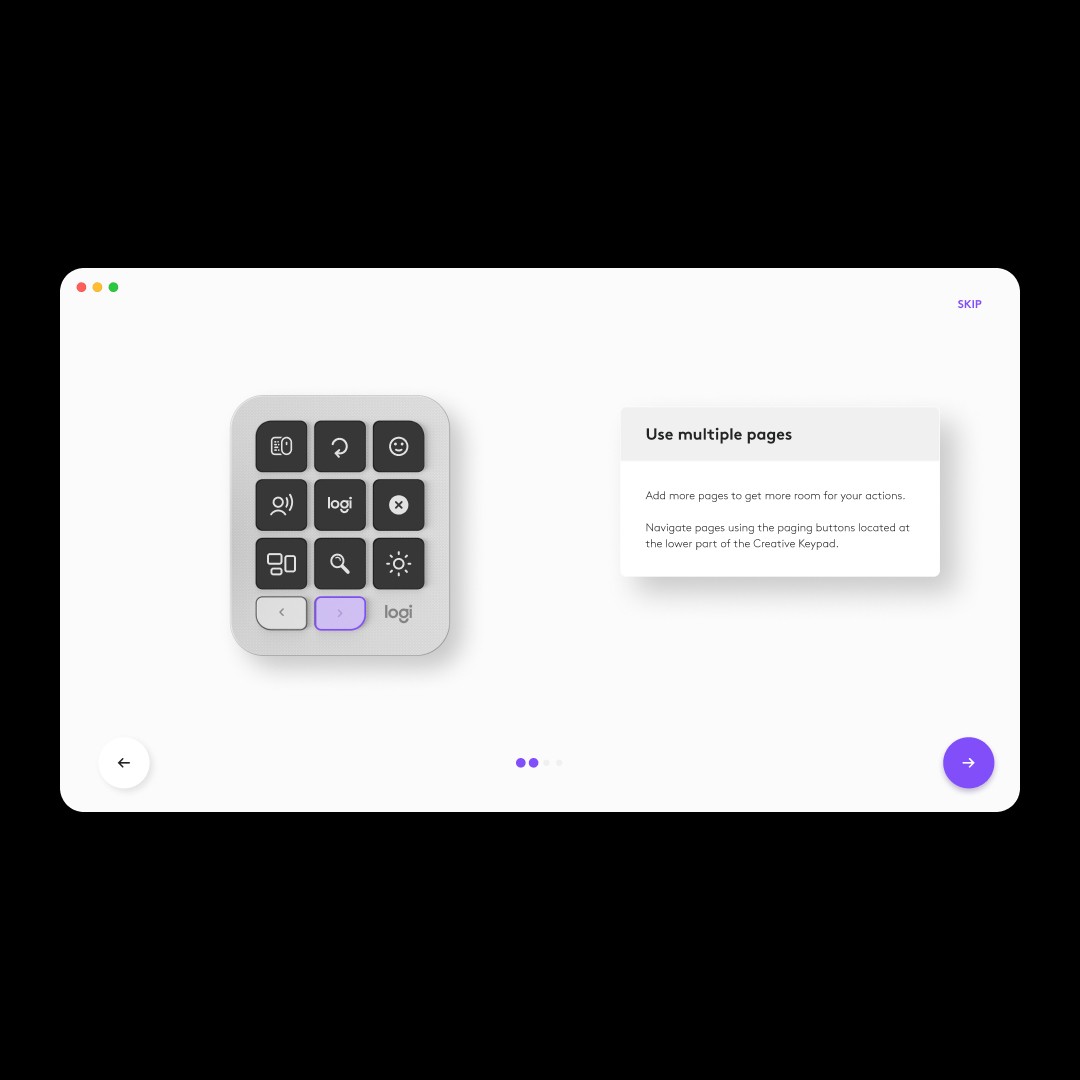
The choice itself was debated. The product manager wanted to keep it. At one point I suggested dropping it, because we had nothing specific to offer people who turned it off. We met halfway: the choice stayed, and turning it off leads to a screen of tips for getting by without it (using several pages, switching profiles from a key, picking one by hand) rather than a real path.
So was the name. For the off state, we tried "Fixed", and colleagues who didn't know the product found it easier to understand than "Adapt to App Off". The developers pointed out that the feature has one name across Options+, and renaming it meant changing it everywhere. I saw it as a front-end change. Still, it wasn't a hill worth dying on.
Categories, and the illustrations behind them
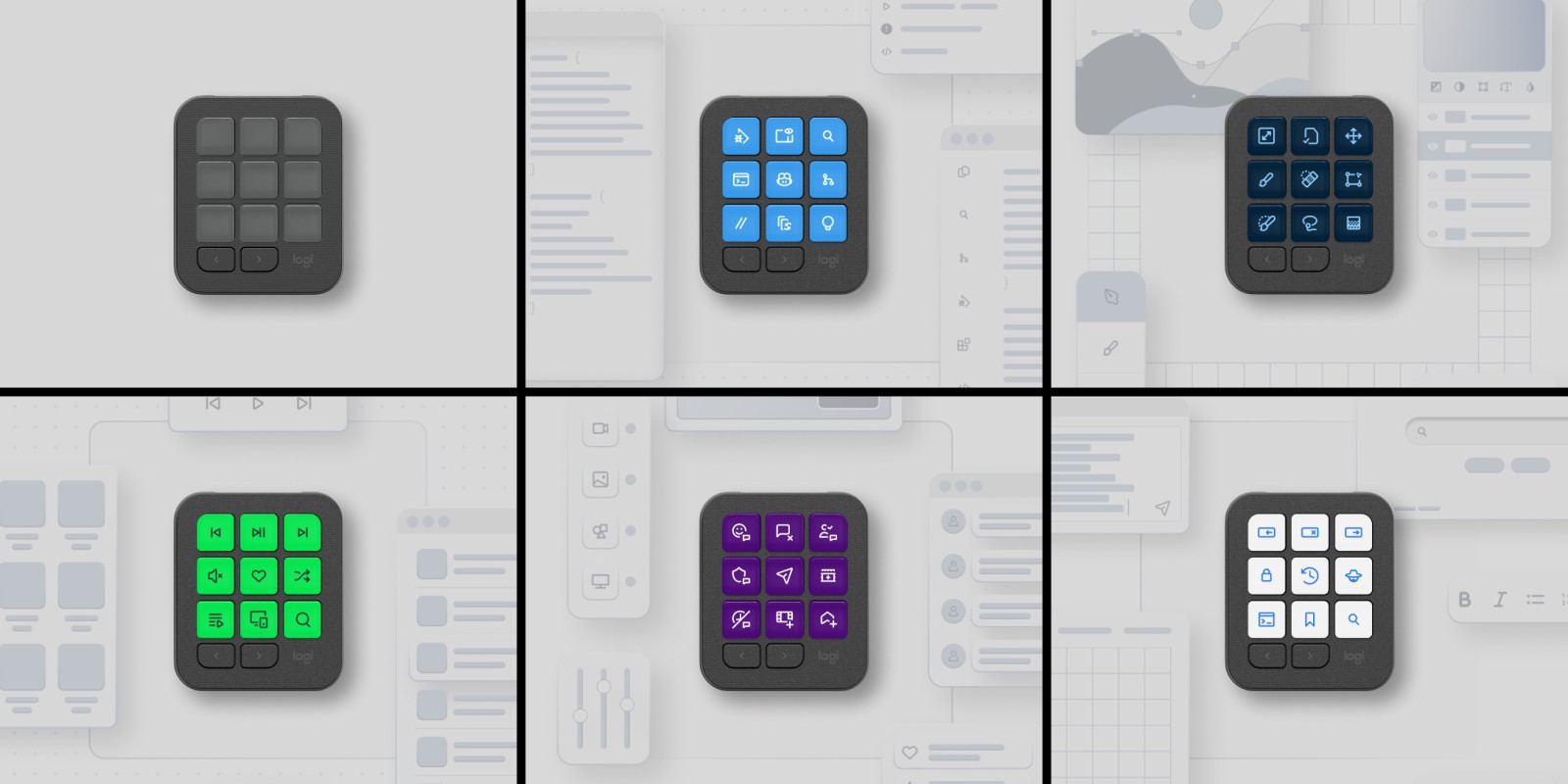
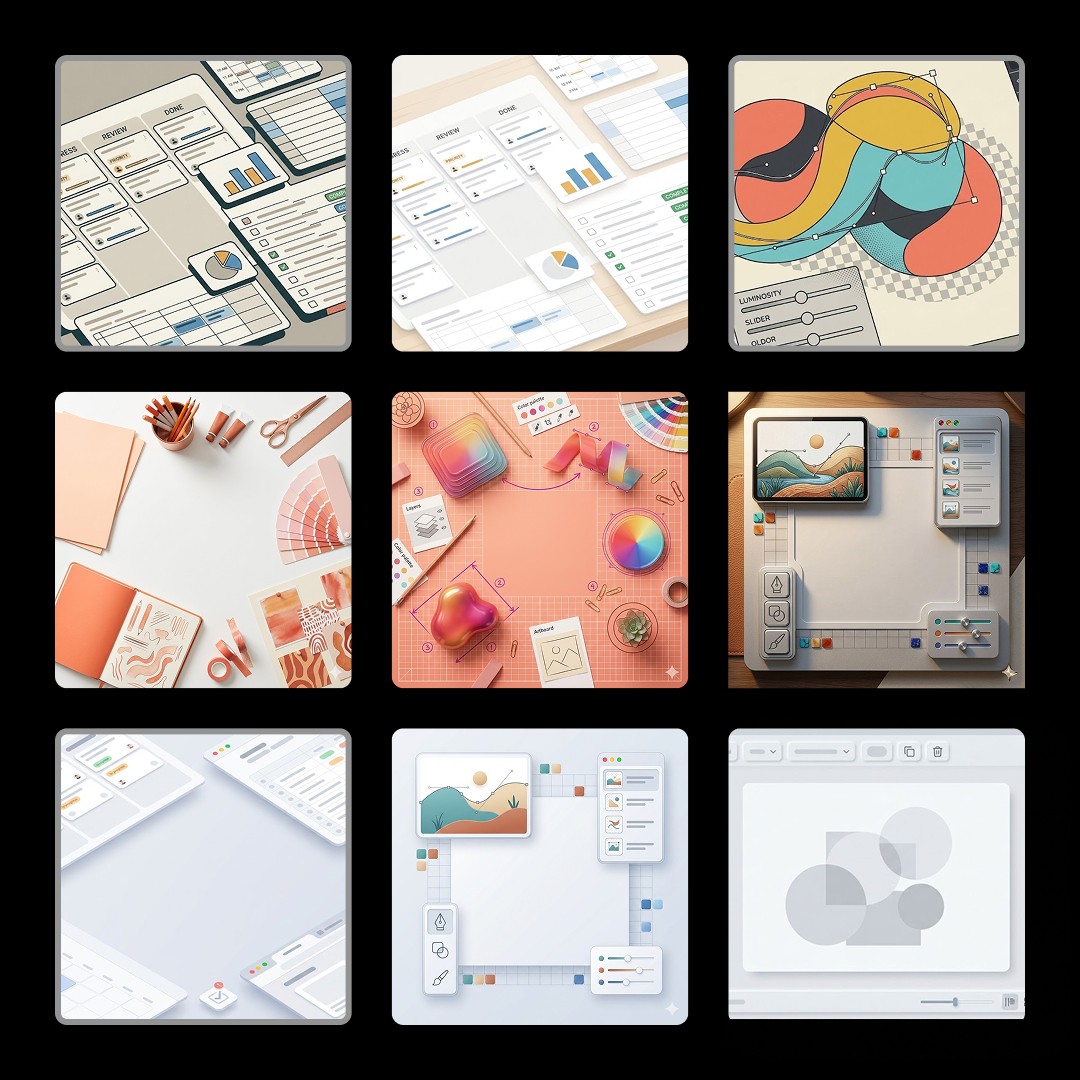
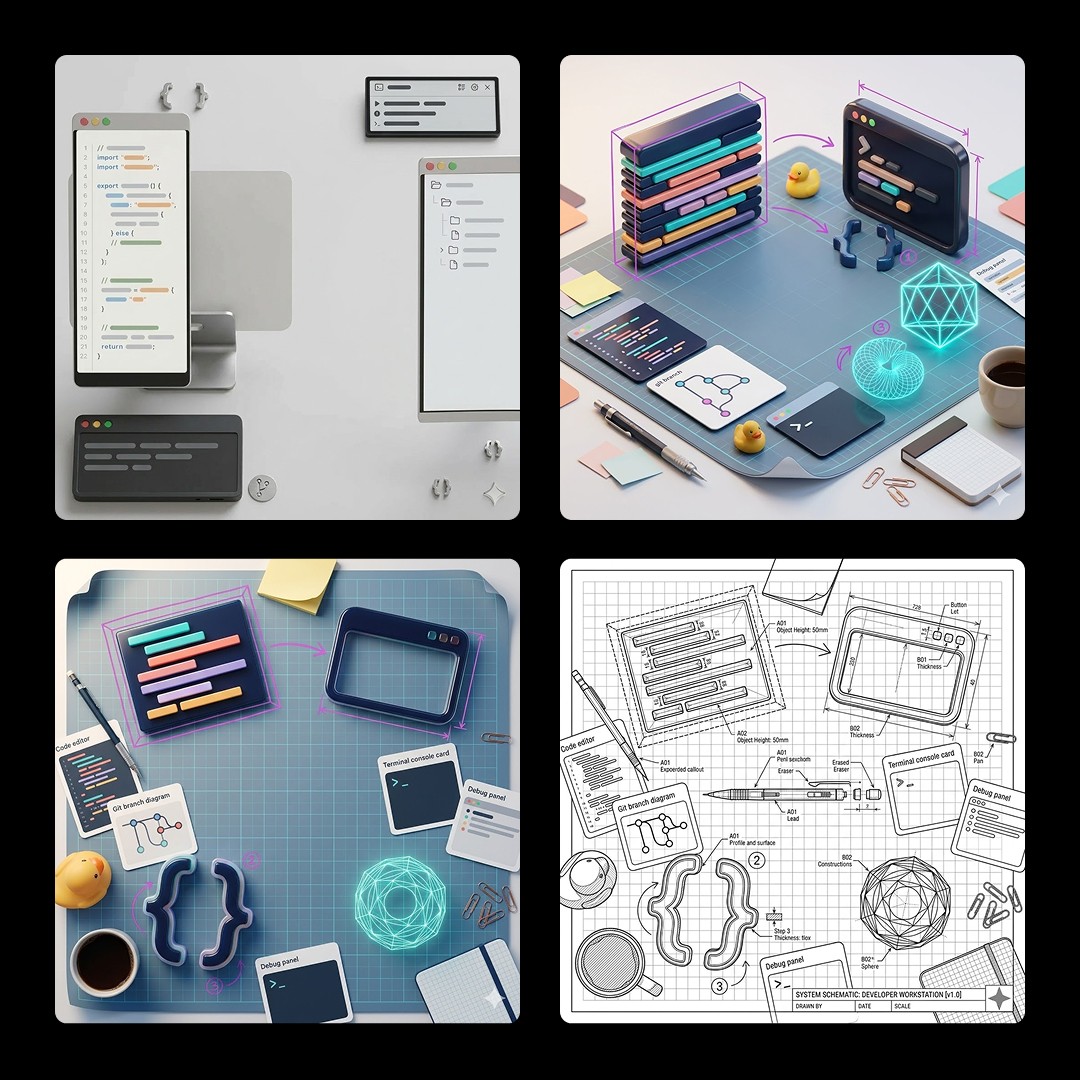
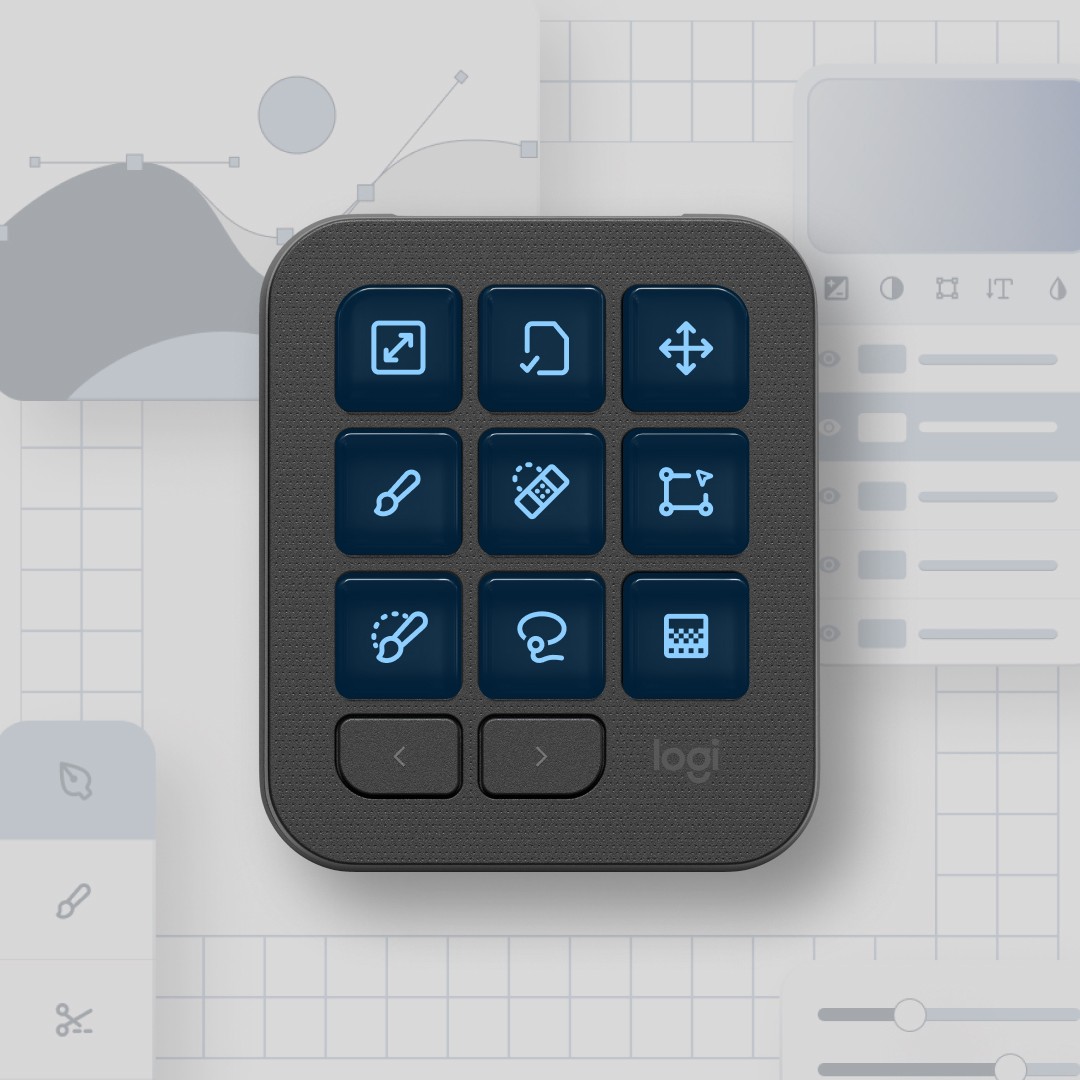
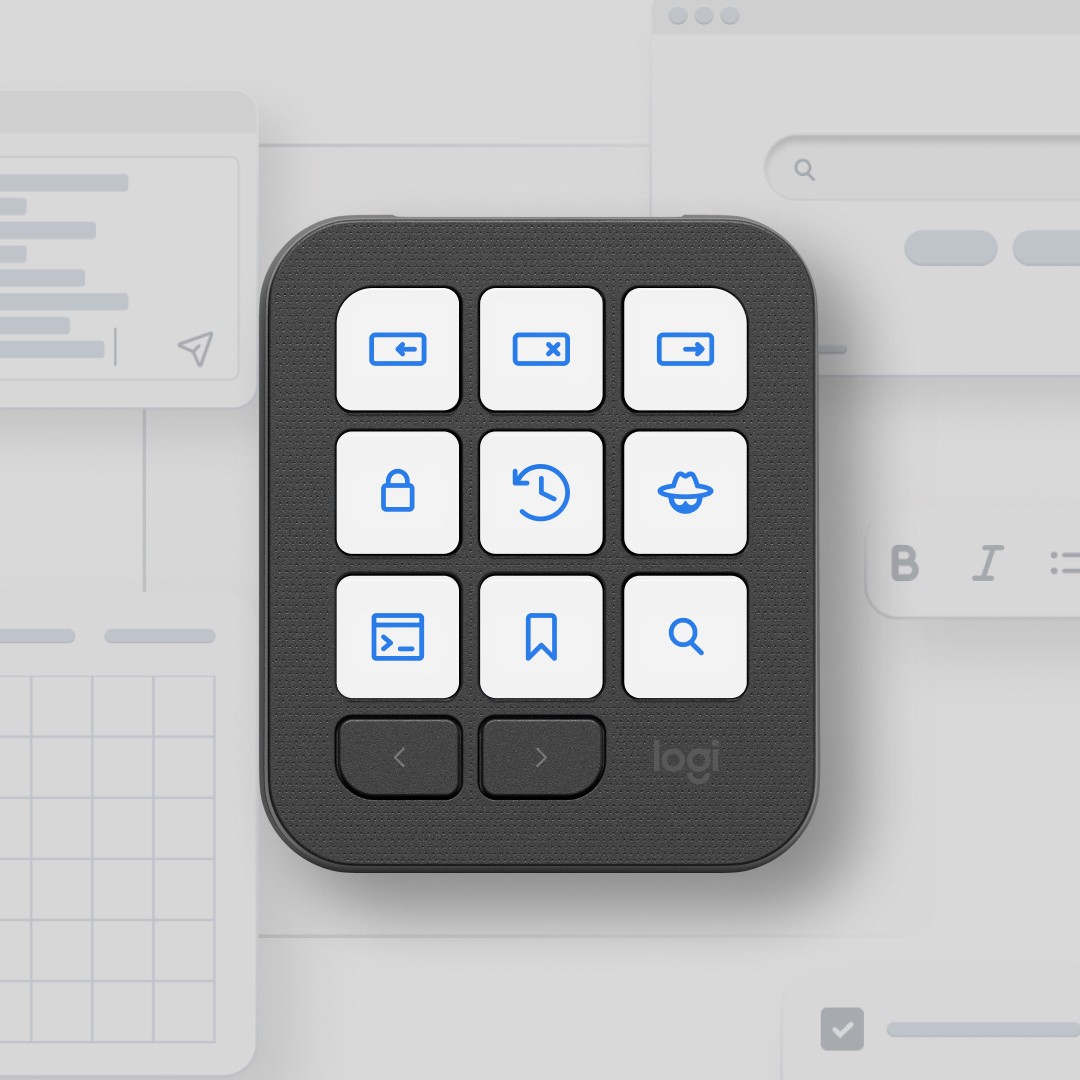
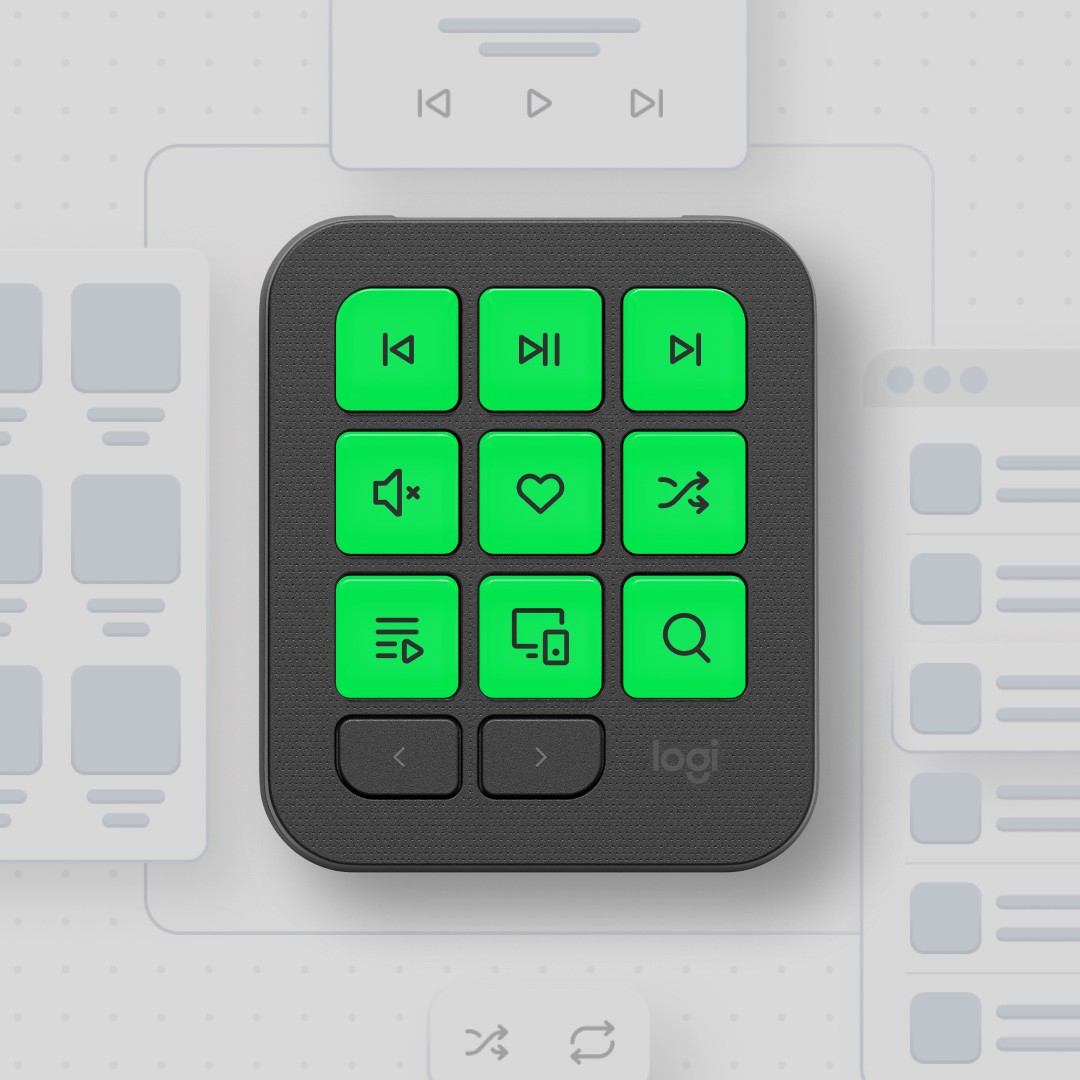
Each of the five work categories puts an illustration behind the keypad, and the keys switch to matching colours and icons. The keypad is the subject. The illustration just gives it a job.
That rule settled the direction. An isometric version clashed with the flat, top-down view of the device. More colourful versions pulled the eye away from the keys. The ones that shipped stay quiet and on brand, and show generic software, an image editor or an IDE, rather than any real product.
I used AI early on to explore directions, then drew the final versions by hand, as vectors. They had to stay light, scale with the layout, and be easy to animate or update. None of the generated images were ever meant to ship.
The result
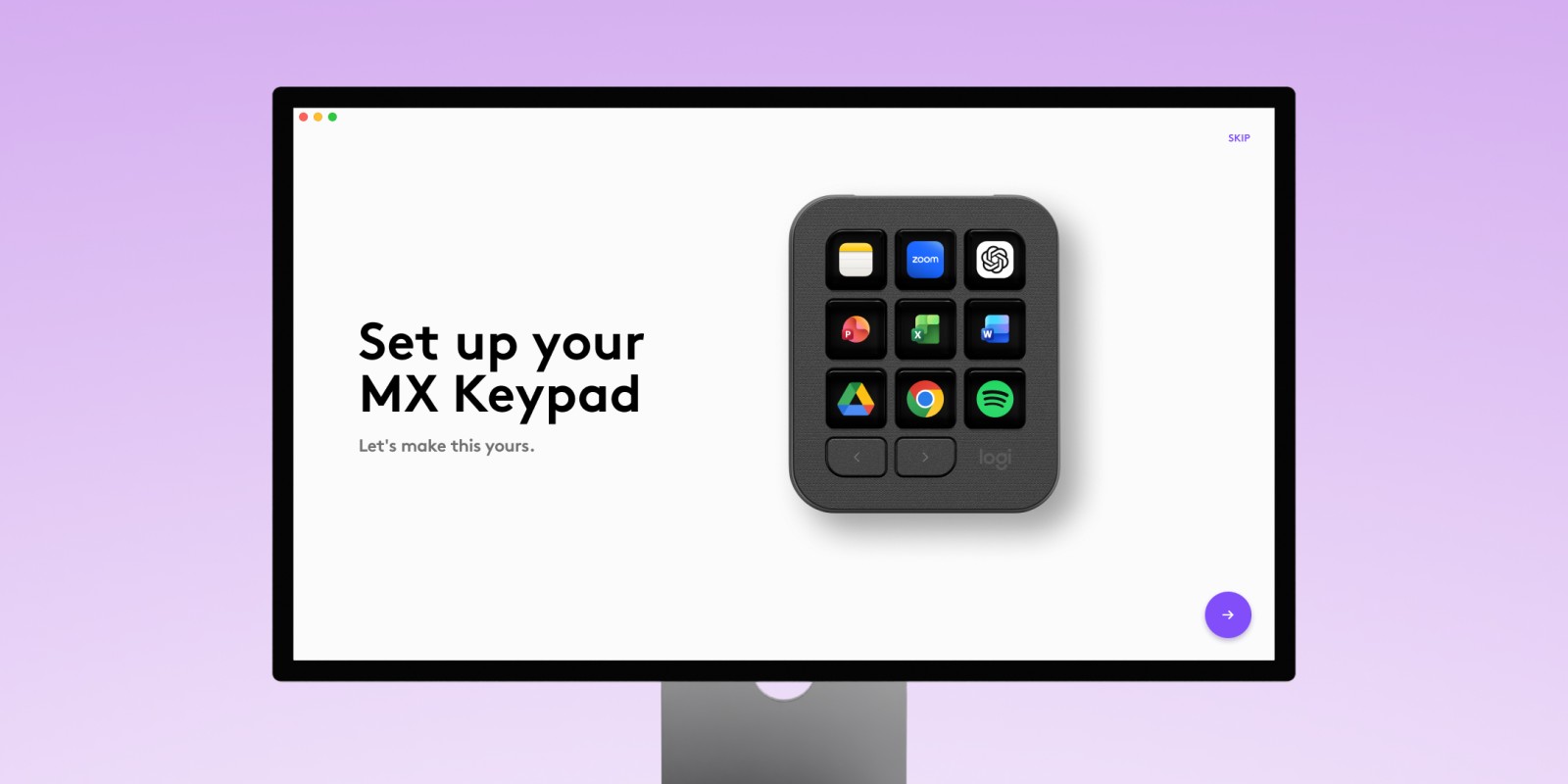
Here's the flow as it shipped, start to finish: what a key can do, how the keypad should behave, what kind of work you do, and the plugins that follow from it. It's the flow the number below describes.
Metrics
~90%
of users go through every screen of the onboarding without skipping, according to Logitech's internal dashboard.
There's no baseline from the Consoles version, so the number stands on its own.
Reviews of the device don't mention the onboarding. For a setup flow, silence is probably a good sign. It doesn't prove much either.
Conclusion
The flow that shipped is shorter than the one I had in mind, and clearer about what the keypad is for.
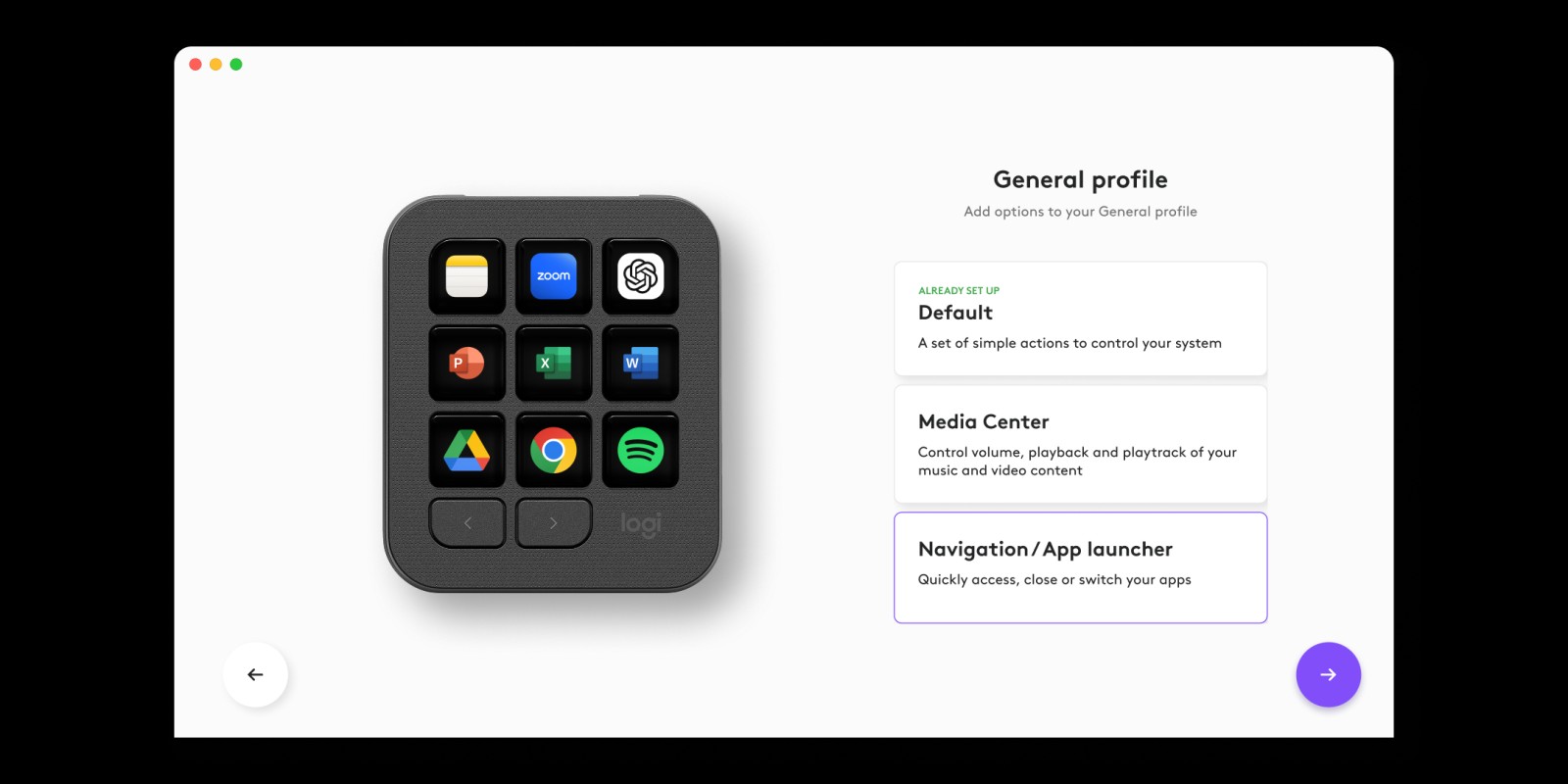
Two things didn't make it. The hardware stayed out of the onboarding: pressing a real key and watching the screen respond would have taught more than any animation. And people who just want an app launcher or media controls still set up their keys one by one. I designed a set of ready-made profiles for them to pick from (Default, Media Center, Navigation), and it was cut for time and resources.
What I'd do differently
Test "Fixed" against "Adapt to App Off" with real users, not just colleagues. That said, nobody ever complained about "Adapt to App", and not every detail is worth weeks of work.